How to Convert WAV to MP3 on Windows & Mac
Updated August 31, 2026
WAV is what audio gear and editing software produce: uncompressed, pristine, and enormous. A one-hour recording lands around 600 MB. Nobody wants to email that, host it, or fill a phone with it, which is where MP3 comes in at roughly a tenth of the size.
This guide converts WAV to MP3 with ConvertSave, a drag-and-drop converter for Windows and Mac. Your recordings are converted on your own computer and never uploaded, which matters when they're interviews, sessions, or unreleased music.
How to convert WAV to MP3
- 1
Drag your files into ConvertSave
Open ConvertSave and drag your WAV files into the window. You can drop one file or a whole selection at once. There is no upload step, because the files never leave your computer.
- 2
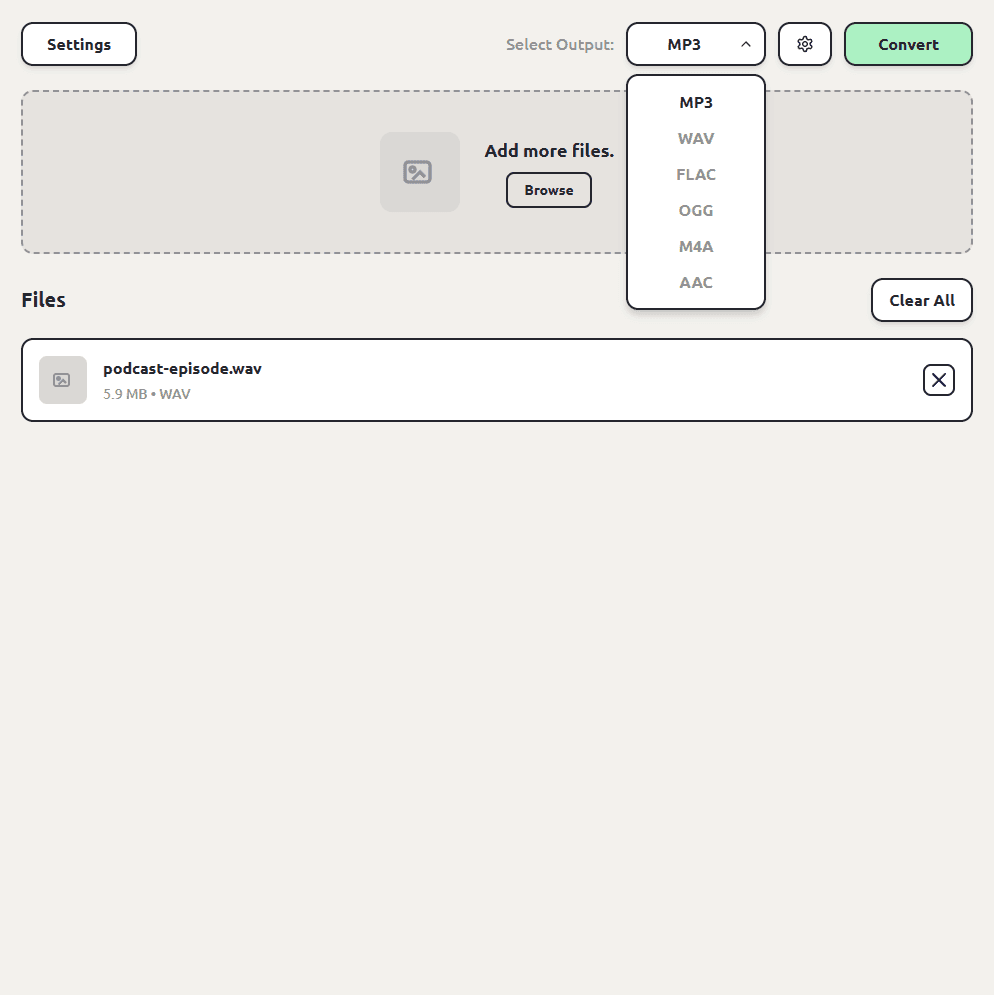
Choose MP3 as the output format
Pick MP3 from the format list. ConvertSave shows the formats that make sense for the files you dropped, so MP3 is right there.
- 3
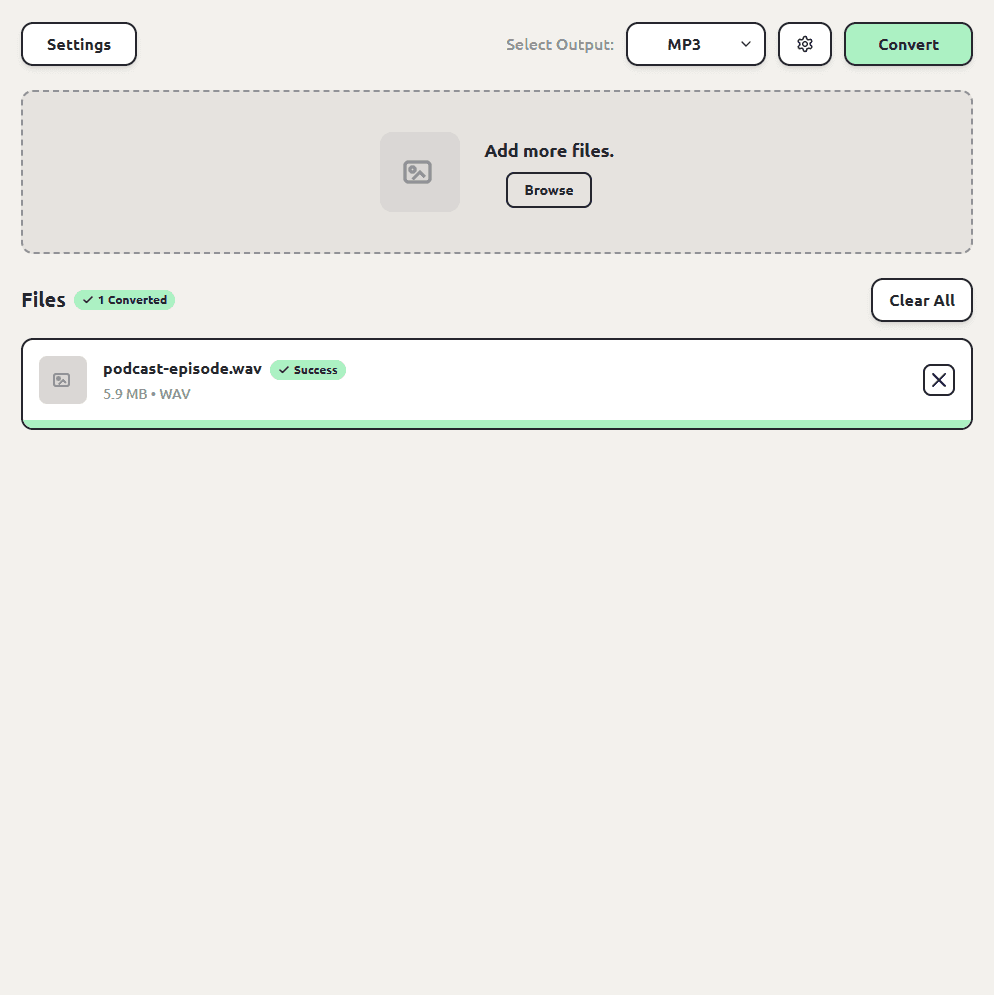
Click Convert
Hit the Convert button. Each MP3 file is saved next to the original, so you don't have to hunt through folders to find your converted files. The originals are left untouched.
It works for any audio format, not just WAV
FLAC, OGG, M4A, AAC, and the rest convert to MP3 with the same three steps. Drop whatever audio you have and pick MP3. If your files are M4A voice memos specifically, our M4A to MP3 guide covers those quirks.
How to batch convert WAV to MP3
Drag in a whole session's worth of WAV files, pick MP3 once, and convert. Each MP3 is saved next to its WAV with the same name. We've tested batches of up to a thousand files, and the disk-space payoff on WAV batches is dramatic.
WAV vs MP3: what's the difference?
| WAV | MP3 | |
|---|---|---|
| Compression | None, uncompressed | Lossy |
| Size for 1 hour of audio | Around 600 MB | Around 60 MB |
| Best for | Recording, editing, mastering | Listening, sharing, publishing |
| Quality | Bit-perfect | Excellent at normal bitrates |
The usual workflow is both: keep the WAV as your master copy, hand out the MP3. Since ConvertSave leaves the original untouched, that's exactly what you end up with.
Is WAV to MP3 conversion safe?
The risk with converting WAV recordings isn't the conversion itself, it's where the conversion happens. Free converter websites work by uploading your file to someone else's server. You usually can't tell who runs the server, where it is, or how long your file sticks around after the conversion finishes. For personal videos and photos that's a real privacy trade, and it's the reason so many of those sites are covered in aggressive ads.
ConvertSave does the conversion on your own computer. Nothing is uploaded anywhere. You can turn off Wi-Fi entirely and it still works, which is also the easy way to verify the claim. Your original file is never modified, and the converted copy is written right next to it.
Frequently asked questions
How much quality does WAV to MP3 lose?
MP3 discards audio data your ear is least likely to notice. For speech and most music at normal bitrates the difference isn't audible in everyday listening. Keep the WAV if you plan to edit later; edit the master, not the MP3.
How much smaller will my files get?
Roughly ten times smaller is typical. An hour-long 600 MB WAV becomes an MP3 around 60 MB.
Can I convert WAV to M4A or FLAC instead?
Yes. The output list includes MP3, M4A, AAC, OGG, and FLAC. FLAC is the pick if you want smaller files with zero quality loss.
Do my recordings get uploaded anywhere?
No. ConvertSave converts on your computer and works offline. Nothing leaves your machine.
Is ConvertSave free?
There's a 7-day free trial with all features unlocked. After that it's $9/month, $60/year, or $129 once for a lifetime license that covers 3 personal devices on Mac and Windows.